
Picture this: your sales pipeline is buzzing with activity, automatically filling itself with qualified leads while your team does what they’re truly great at—building relationships and closing deals. This isn’t some far-off dream. It’s the reality for businesses that connect Zapier and Pipedrive, turning tedious manual work into a powerful, automated advantage.
Unleash Your Sales Potential With Smart Automation

When you link Zapier and Pipedrive, you’re essentially building a central nervous system for your sales process. Information flows instantly and automatically, killing manual data entry and letting your team jump on hot leads the second they come in. This isn’t just about saving time; it’s a fundamental shift in how your sales team performs.
And the numbers don’t lie. A Pipedrive Marketplace survey found that businesses using integrations like Zapier generated roughly five times more deals than companies using a standalone CRM. That’s not a small improvement—it’s a massive leap in performance. Discover more insights from Pipedrive’s research to see the full impact.
Drive Revenue, Not Just Efficiency
This kind of automation creates a direct path from your first point of contact straight to closed-won revenue. That same study revealed that a staggering 41% of all deals closed by integrated teams came directly through these automated workflows. For anyone using tools like LeadBlaze to capture website leads 24/7, this is an absolute game-changer.
Think about it: an AI assistant on your site captures a qualified lead overnight. Instantly, Zapier creates a new deal in Pipedrive, assigns it to the right salesperson, and even schedules a follow-up task. Your sales process goes from reactive to relentlessly proactive.
But the benefits don’t stop at just creating deals. Teams that connected their apps also saw their average win ratio climb to 47% and cut the time it took to close deals by an average of 12%. This gives your sales reps their most valuable asset back: time to focus on high-value conversations instead of getting bogged down in admin work.
Zapier is the glue that holds it all together, connecting Pipedrive to a massive ecosystem of over 8,000 other apps. This opens up a world of possibilities:
- Finally get your marketing and sales tools talking to each other.
- Give your team a complete, unified view of every prospect’s journey.
- Grow your revenue potential without having to blow up your headcount.
In the end, combining Zapier and Pipedrive helps you build an intelligent, automated sales engine that works for you around the clock. You can rest easy knowing no opportunity will ever fall through the cracks again.
Building the Foundation of Your Automated Sales Engine
Before we get into building those game-changing automations, we have to handle one crucial first step: connecting Zapier and Pipedrive. Think of it as the initial handshake between your two most important sales tools. Getting this right from the start ensures they can talk to each other without a hitch, which is the whole point of this exercise.
The great news? This is surprisingly simple. You don’t need a developer or any special technical skills. As long as you have an active account for both platforms, you’re ready to go. When you’re choosing your sales and marketing tools, it’s always smart to see how well they play with others. Many modern platforms offer a seamless Zapier integration for exactly this reason.
Authorizing Your Accounts
To get the ball rolling, just log into your Zapier account. From there, you’ll start a new Zap and choose Pipedrive as the app you want to connect. A little window will pop up, asking for your permission and something called a Pipedrive API key.
Don’t let the term “API key” intimidate you. It’s really just a unique, secure password that lets Zapier talk to your Pipedrive account for you. Finding it is a piece of cake: inside Pipedrive, just go to Settings > Personal preferences > API.
Copy that long string of characters and paste it into the authorization window in Zapier. That’s it! The two are now officially connected. This one-time setup is the bedrock for every single workflow you’ll build from here on out. If you’re looking for more inspiration on what’s possible, our guide on how to automate your sales process is packed with ideas.
With this connection made, you’ve just unlocked Pipedrive’s ability to work with over 8,000 other applications. The potential is massive. You can now automatically send new leads from your LeadBlaze AI chatbot directly into your sales pipeline or trigger a welcome email the moment a deal moves to a new stage.
To get a real sense of the ecosystem you just plugged into, you can explore the Zapier and Pipedrive integration possibilities on Zapier’s site.
Here are just a few of the most popular apps you can now connect to Pipedrive, opening up a world of automation possibilities:
- Google Sheets: Log new deals or contacts for backup and reporting.
- Slack: Get instant notifications for new leads or won deals.
- Gmail: Create draft emails automatically when a lead enters a new stage.
- Facebook Lead Ads: Instantly create Pipedrive deals from new ad submissions.
- Calendly: Create a Pipedrive activity or contact when someone books a meeting.
You’re not just connecting two tools; you’re plugging your CRM into a massive network that can put nearly any repetitive sales task on autopilot.
Alright, let’s get our hands dirty and build your very first, and arguably most valuable, automation: turning a fresh website lead directly into a Pipedrive deal. This is where the real magic happens. We’re moving beyond theory and creating a system that makes your speed-to-lead a matter of seconds, not hours.
For this walkthrough, we’ll use a scenario I see all the time. Imagine you’re using an AI sales assistant like LeadBlaze on your site. It works 24/7, chatting with visitors and qualifying them. Once the AI has a good conversation, it generates a perfect summary of what the prospect wants. Our mission is to pipe that summary straight into Pipedrive, creating a new deal packed with all the context your sales team needs to close.
This is the path we’re about to build. It’s simpler than you think.
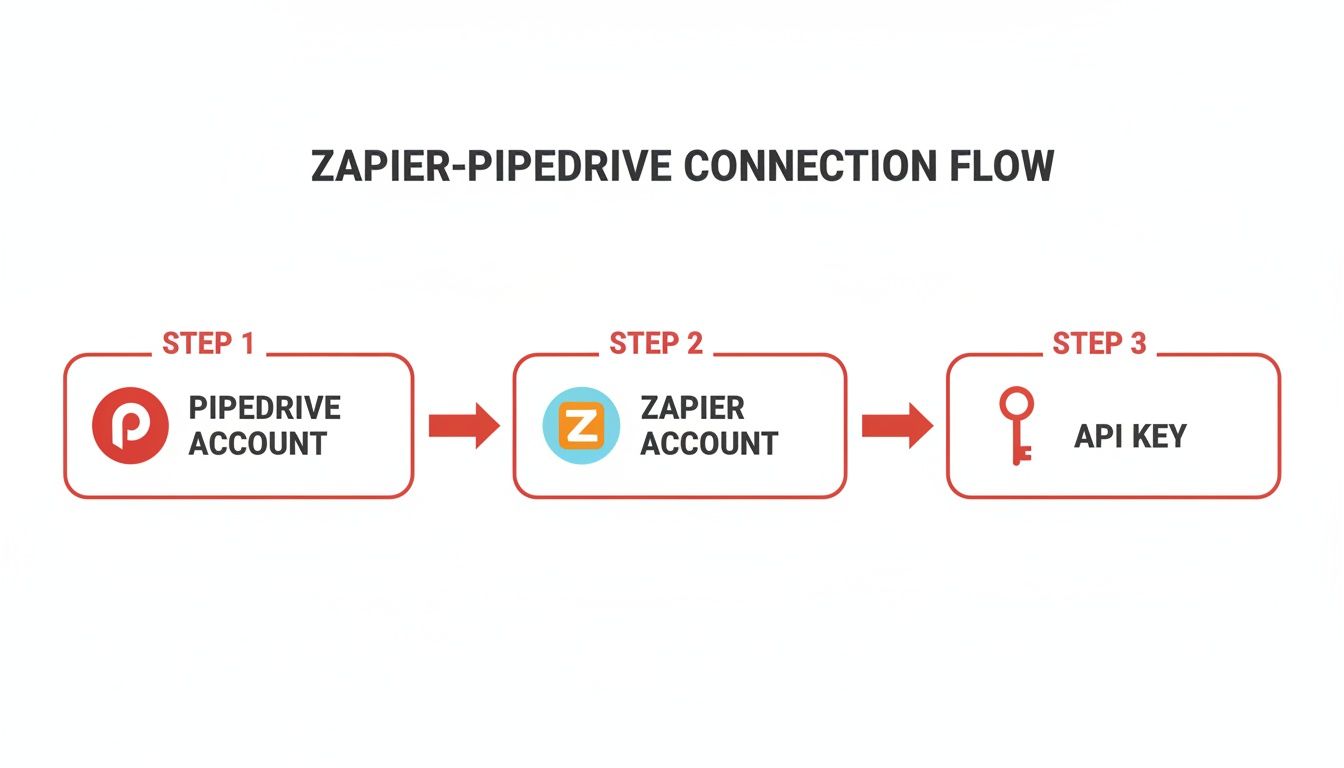
As you can see, your Pipedrive API key is the secure handshake that lets Zapier work its magic on your behalf.
Nailing the Zap Trigger
First things first, log into your Zapier account and hit that big “Create Zap” button. Every automation starts with a Trigger—the event that sets everything in motion.
In the search box, type in and select LeadBlaze. For the trigger event, you’ll want to choose “New Lead Summary.” Zapier will then guide you to connect your LeadBlaze account.
Once you’re connected, Zapier will fetch a sample lead summary. Don’t skip this part! It’s your blueprint, giving you real data to work with. You’ll see all the juicy details your AI assistant captured, like the prospect’s name, their company, email, and the AI-generated notes. If you’re curious about just how powerful this can be, you can get more ideas from our guide on automated lead generation software.
Configuring Your Pipedrive Action
With your trigger ready, it’s time to tell Zapier what to do. This is your Action. Search for Pipedrive in the app list and pick the “Create Deal” action. Now we get to the fun part: mapping the fields.
This mapping process is the heart and soul of your automation. You’re simply playing matchmaker, telling Zapier: “Take this piece of info from LeadBlaze and put it right here in this Pipedrive field.”
Let’s look at how to map the essentials for a perfect handoff.
LeadBlaze to Pipedrive Field Mapping Example
Mapping fields ensures that the valuable information gathered by your AI sales assistant is organized correctly within your CRM. Here’s a common setup I recommend for creating clear, actionable deals in Pipedrive from a LeadBlaze summary.
| LeadBlaze Data Point | Pipedrive Field | Example Value |
|---|---|---|
| Prospect Name | Person Name | Jane Doe |
| Person Email | jane.doe@example.com | |
| Company Name | Organization Name | Acme Corp |
| AI Notes & Summary | Deal Note | “Jane is looking for a solution for her 50-person sales team. Budget is around $5k/mo. Needs a demo by next Friday.” |
| Prospect Name & Company | Deal Title | Jane Doe – Acme Corp Lead |
This simple mapping ensures your sales team opens a deal and immediately knows who the contact is, where they work, what they need, and how to start the conversation. It's a game-changer for efficiency.
You’ll notice in Zapier’s options that it will automatically create a new Person and Organization in Pipedrive if one doesn't already exist. This is fantastic for keeping your CRM data clean and preventing duplicates.
Finally, take the rich "AI Notes" from LeadBlaze and map them directly into the Deal's note section in Pipedrive. This gives your team the full story without them ever having to leave their CRM.
Once you've mapped your fields, it's time to test it out. Go ahead and click the test button. Zapier will push your sample data to Pipedrive. Pop over to your Pipedrive pipeline, and you should see a brand-new, perfectly formed deal appear instantly.
Just like that, you’ve built a powerful bridge between your website and your sales team. No more lost leads. No more delays. Just pure, automated efficiency.
Mastering Field Mapping For Richer Lead Profiles

Getting a new lead into your CRM is one thing. But sending over a deal that’s already packed with context? That’s how you light a fire under your sales process. When you move beyond just a name and an email, you’re turning a cold entry into a genuinely warm conversation. This is where the real magic of Zapier and Pipedrive comes into play, and it’s your best-kept secret for closing deals faster.
Imagine your sales reps opening Pipedrive to find leads that are more like fully-formed opportunities. If you're using an AI tool like LeadBlaze to qualify website visitors, this means automatically piping critical intelligence—like a prospect’s budget, their decision timeline, and their biggest pain points—directly into specific fields on the Pipedrive deal.
Suddenly, your team has instant context. No more digging through emails or notes. This is the detail that separates a good automation from a game-changing one. It's the difference between saying, "Here's a new lead," and saying, "Here's a new lead who needs a demo by Friday, has a $5k budget, and is fed up with their current provider." That’s the kind of intel that empowers your team to act decisively and personally from the very first touchpoint.
Creating the Right Fields in Pipedrive
Before you can send all that juicy data over, you need to build a home for it inside Pipedrive. This starts with creating custom fields that perfectly mirror the information your sales team needs to qualify and close.
First, head into your Pipedrive account. Go to Settings > Data fields and click “Add custom field.” Now, put yourself in your sales team's shoes. What are the non-negotiable questions they ask on every discovery call?
Think about creating fields for things like:
- Lead Source: Where did they come from? (e.g., Website AI, Google Ads, Webinar)
- Budget: Do they have an approved budget? What is it?
- Timeline: Are they looking to buy this quarter or next year?
- Key Pain Point: What's the one problem that’s driving them to look for a solution right now?
By creating these specific fields, you’re building a rich, structured profile for every single deal. It makes your entire pipeline smarter and way more predictable.
Your goal is to give your sales team all the information they need to have a meaningful first conversation without ever having to leave Pipedrive. A well-mapped deal should tell a complete story.
With your new Pipedrive fields in place, jump back over to your Zap. When you get to the "Action" step, you'll see your new custom fields waiting for you. It's as simple as matching the data from your trigger app—like the "Budget" response captured by LeadBlaze—to the corresponding "Budget" field you just created in Pipedrive.
This careful mapping process ensures every piece of valuable intelligence you capture makes its way directly to the people who can use it best. It’s a small step to set up in Zapier, but it delivers a massive leap in your team’s sales efficiency.
Essential Automations Every Sales Team Needs
Once you’ve built that core bridge from your website leads into Pipedrive, you can start chipping away at the thousand tiny administrative tasks that eat up your sales team's day. These small, automated wins add up fast, giving your team the breathing room to do what they do best: build relationships and close deals. Think of Zapier and Pipedrive as your toolkit for building an incredibly efficient sales engine.
Let's walk through three powerful automations I've seen deliver immediate returns for countless teams. These aren't just abstract ideas—they're practical workflows you can set up right now to make a real difference.
Instantly Create Follow-Up Tasks for New Deals
In sales, speed is a non-negotiable. The moment a new deal appears in your pipeline, the clock is ticking. Manually creating a follow-up task is not only slow, but it's also a classic point of failure. A hot lead can go ice-cold while someone is tied up with data entry.
A simple Zap erases this risk entirely.
- The Trigger: A "New Deal" is created in Pipedrive. You can even filter this to fire only for deals in a specific stage, like your very first "New Lead" column.
- The Action: Zapier then immediately "Creates a Task" in Pipedrive.
You can get clever here. Dynamically assign that task to the deal's owner, set the due date for one day out, and even create a standardized task title like "Initial Follow-Up for [Deal Name]." Just like that, you've guaranteed no opportunity ever sits idle. Every single lead gets immediate attention, a critical factor for boosting conversion rates.
Send Personalized Welcome Emails at Key Stages
Consistent communication is what moves a deal from "maybe" to "yes." Manually sending a welcome email when a prospect hits a milestone—like moving to "Qualified" or "Demo Scheduled"—is another one of those tasks that easily falls through the cracks on a busy day. Automating it ensures every prospect gets a consistent, professional experience.
Imagine a deal is dragged to the "Qualified" stage in Pipedrive. A second later, your prospect gets a personalized email from the deal owner with relevant case studies or a link to book their next meeting. This instantly reinforces their decision and keeps the sales momentum rolling.
Your Zap would look something like this:
- The Trigger: "Updated Deal Stage" in Pipedrive. (For more complex rules, you could also use the "Deal Matching Filter" trigger).
- The Action: "Create and Send Email" using your connected Gmail or Outlook account.
By pulling in the prospect's name and the deal owner's email address, you can send a warm, personal message that feels handcrafted, not automated. This is a small touch that builds huge trust and keeps you top-of-mind. One of the most essential automations every sales team needs is streamlined automated lead routing with Pipedrive and Zapier to ensure the right leads get to the right people instantly.
Celebrate Wins and Motivate Your Team in Slack
Nothing fuels a sales floor like celebrating success. When a deal is marked "Won," it's a victory for the entire team. Instead of letting that moment vanish into a CRM report, use Zapier to broadcast the great news and create a culture of winning.
This Zap is always a team favorite.
- The Trigger: A deal is "Updated to Won" in Pipedrive.
- The Action: Zapier "Sends a Channel Message" in Slack.
Configure the message to include the deal name, its value, and a shout-out to the salesperson who closed it. A simple post like, "🎉 Big Win! @[Salesperson] just closed the [Deal Name] deal for $5,000! 🎉" does wonders for morale and keeps everyone focused on the big picture.
If your team lives on other platforms, you can get more ideas by exploring how to integrate WhatsApp with your CRM.
Keeping Your Automations Healthy: Troubleshooting & Best Practices
So, you’ve built your shiny new automation between Zapier and Pipedrive. Everything looks great on paper, but then… a lead doesn't show up. Or the data is all wrong. Don't panic. This happens to everyone, and it's a completely normal part of working with automations.
The goal isn’t to build something that never breaks; it’s to know exactly what to do when it does. Fortunately, figuring out what went wrong is usually pretty straightforward.
Your Secret Weapon: The "Test Step"
Before you ever unleash a new Zap on your live sales pipeline, you absolutely have to use the "Test step" feature. I can't stress this enough. This is your single best tool for catching problems before they start.
This feature pulls in real data from your trigger—like a new lead from your website form—and lets you see exactly how it will land in Pipedrive. It’s the perfect dress rehearsal. You can spot a funky formatting issue or a mismatched field in seconds, all without creating a single piece of junk data for your sales team to clean up.
When Things Go Wrong: Your Troubleshooting Checklist
Once your Zaps are running, the job becomes less about building and more about mindful maintenance. A "set it and forget it" approach is a recipe for trouble. A few quick checks can save you from a world of hurt later.
Most of the time, when a Zap breaks, it's one of two things. First, check your app connections. Did someone on your team recently change the Pipedrive password? That’ll break the connection instantly. Just pop over to your "My Apps" section in Zapier and make sure everything shows a healthy, connected status. It takes two minutes.
If the connection is fine, the problem is almost always in your field mapping.
Your best friend in these moments is the "Task History" inside Zapier. It’s a complete log of every single time your Zap has run, succeeded, or failed. If a run fails, Zapier gives you an error message that tells you exactly which step broke and why. It's like a black box for your automations.
Smart Habits for Long-Term Success
To keep your automations running smoothly for the long haul, a few simple habits go a long way. These are the things that separate the pros from the beginners.
-
Name Your Zaps Like a Human: Please, don't leave your Zaps named "Pipedrive Zap 1." When you have dozens of them running, you'll never find the one you need to fix. Be specific! A name like "LeadBlaze New Lead -> Create Pipedrive Deal" tells you exactly what it does at a glance.
-
Embrace Multiple Steps: A Zap doesn't have to stop after one action. Think about the entire workflow. After you create a new Deal in Pipedrive, why not add another step to automatically send a "New Hot Lead!" notification to your team's Slack channel? This is how you build a truly powerful system.
-
Do a Quarterly Cleanup: Once a quarter, grab a coffee and spend 30 minutes reviewing all your active Zaps. Are they all still providing value? Can any be improved? Maybe two simple Zaps can be combined into one. This keeps your account tidy and efficient.
Treating your automations as a living part of your sales process—not just a static tool—is the key. These simple practices will ensure your Zapier and Pipedrive integration remains a powerful, reliable engine for your business growth.
Got Questions? Let's Clear Things Up
Diving into a new automation setup always brings up a few questions. That's a good thing! It means you're thinking critically about how to build the best system for your business. Here are answers to a few common sticking points I hear all the time.
Just How Many Apps Can I Actually Connect to Pipedrive?
This is where the magic really happens. Through Zapier, you can connect Pipedrive to a staggering 8,000 different applications. That isn't just a big number; it represents a nearly limitless potential to build a workflow that fits your business like a glove.
We're talking about all the tools you probably use every single day:
- Marketing platforms like Mailchimp or HubSpot
- Team chat apps like Slack or Microsoft Teams
- Lead generation tools like Facebook Lead Ads or Typeform
This isn't just about connecting apps. It’s about creating a central nervous system for your sales operations, with Zapier and Pipedrive at the very heart of it all.
I'm Not a Coder. Is Mapping Custom Fields a Headache?
Not in the slightest. I know "field mapping" sounds technical and intimidating, but Zapier has made it incredibly straightforward. Honestly, it’s more like a simple matching game than a technical task.
When you're building a Zap, you'll see all the information your trigger app collected—things like a lead's budget, their specific interests, or their project timeline. You just click on the piece of data you want to send over, then choose the custom field in Pipedrive where it belongs. It’s all visual, all point-and-click. No code, no stress.
What Happens If My Zap Breaks or Something Goes Wrong?
This is a great question, because in the real world, things sometimes hiccup. Zapier is built for this. It keeps a detailed "Task History" where you can see a log of every single time your Zap has run, whether it succeeded or failed.
If a Zap ever fails, you're not left in the dark. Zapier tells you exactly why (like "missing required data") and gives you a one-click option to replay the task once you've fixed the issue. This means no lead ever gets lost in the digital void. You can even set up notifications to get an instant alert if a critical Zap runs into trouble.
Ready to stop missing website leads and start engaging every visitor? LeadBlaze is a 24/7 AI sales assistant that turns your traffic into qualified leads automatically. Try it free and see the difference at https://leadblaze.ai.